FOR TEACHERS

More time to teach.

Registers, homework, marks and messages in one workspace in the browser, built around how a school day actually runs. Less admin between lessons, and a clearer view of every class.

Less admin

Minutes back each lesson.

Attendance in one press, absence notes decided in one place.

A clearer picture

See where help is needed.

Earlier marks beside the new one, and the week’s homework load at a glance.

The school decides

Your rules, kept.

What families see, and whether and how students use the study tutor.

Attendance

Less admin. More lesson time.

Spend less of the lesson taking the register. Mark everyone else present in one press, adjust the exceptions and undo a mistake without starting again.

  • Straight from the timetable: open the register for the lesson you are in.
  • Repeated periods keep separate registers, dated to the lesson.
  • Absence notes from families and students, decided by the form tutor in one list.
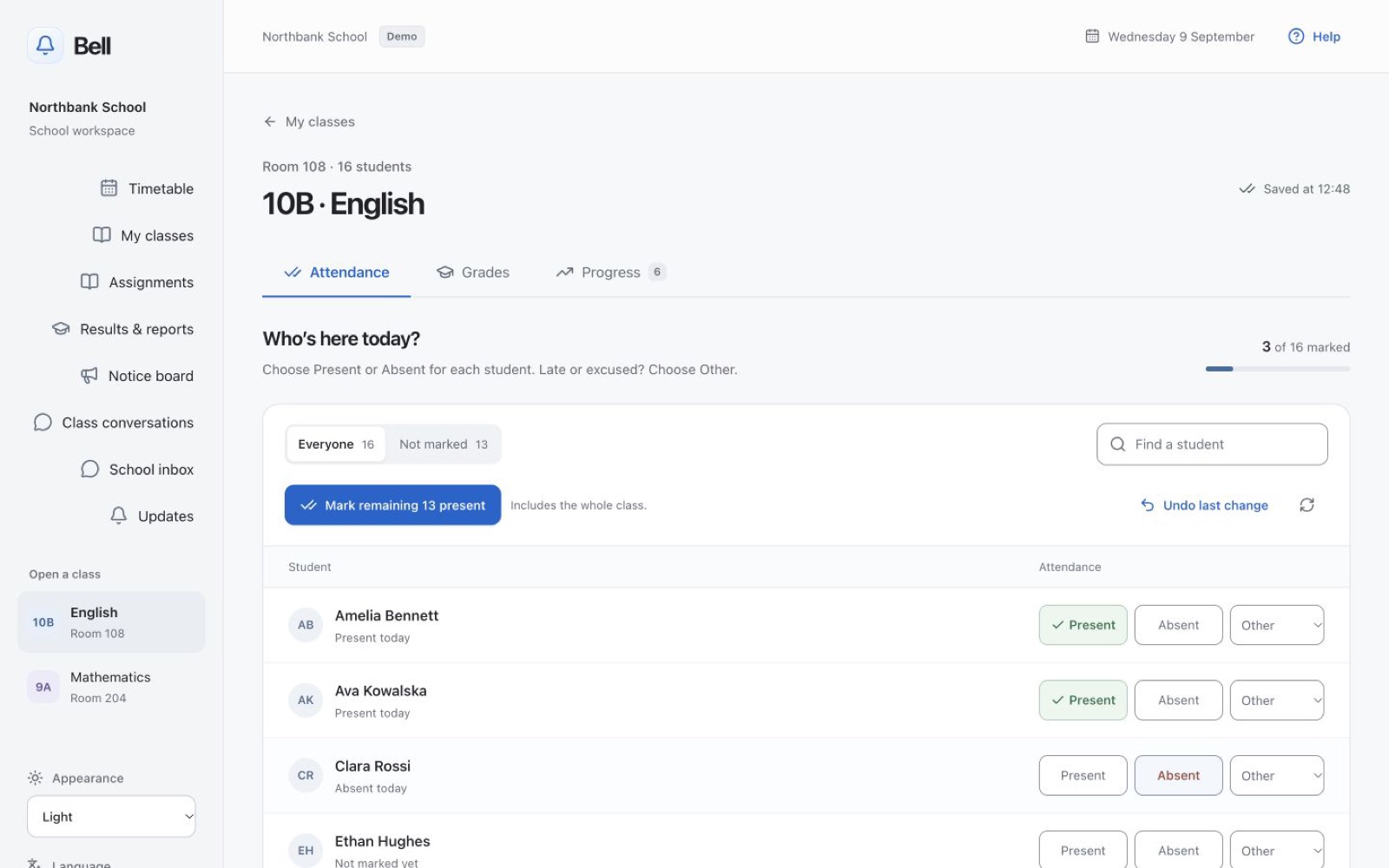
Bell's register in the browser
Timetable and homework

Start each lesson prepared.

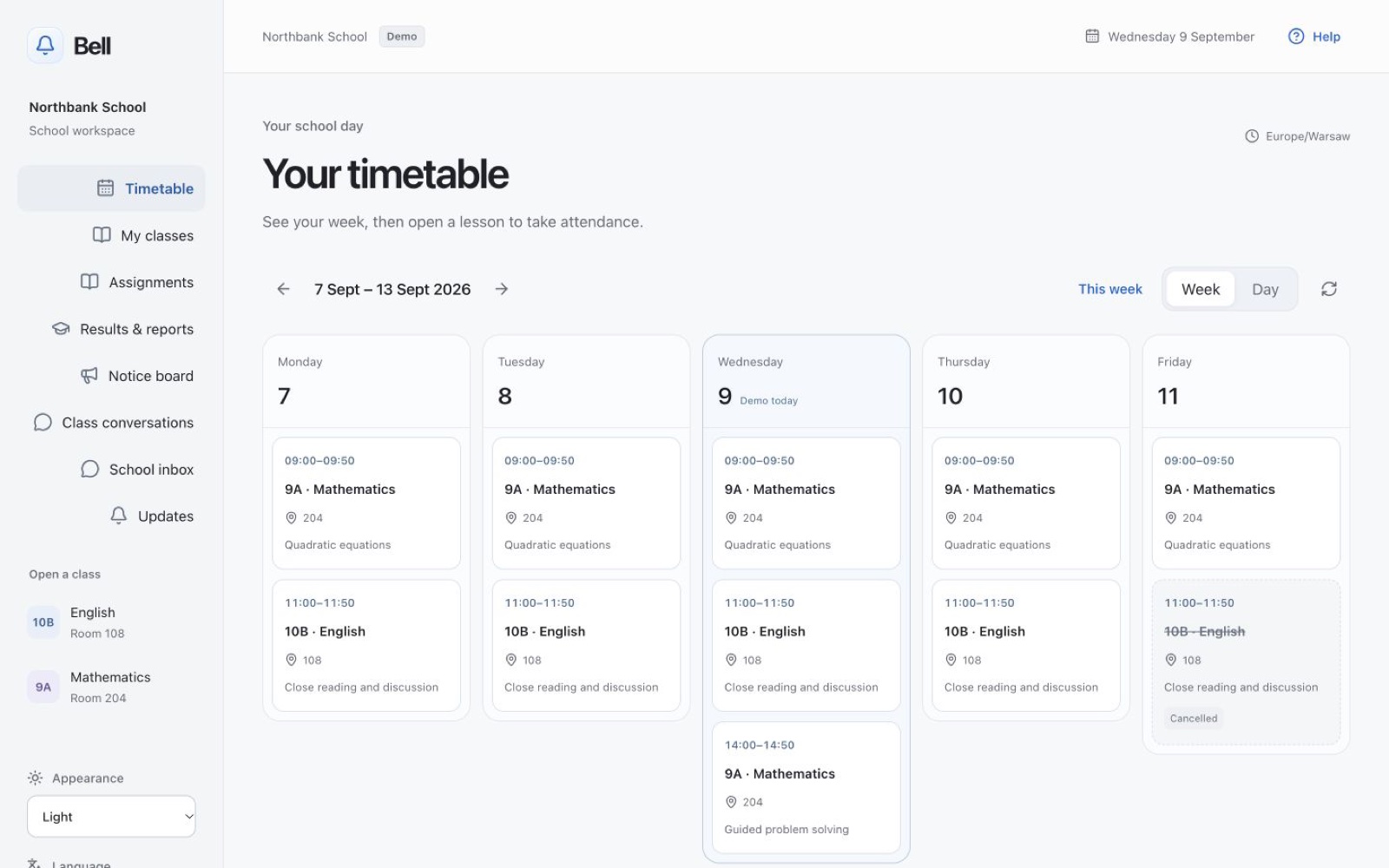
See your week, room changes and cancelled lessons at a glance, and keep the class’s work beside the lesson.

  • Set homework with instructions, due dates and class materials; publish when it is ready.
  • The next seven days of homework across a class, so deadlines do not pile up.
  • A lesson links to its assignments and materials.
A teacher's week in Bell's timetable
Gradebook

See where support can help.

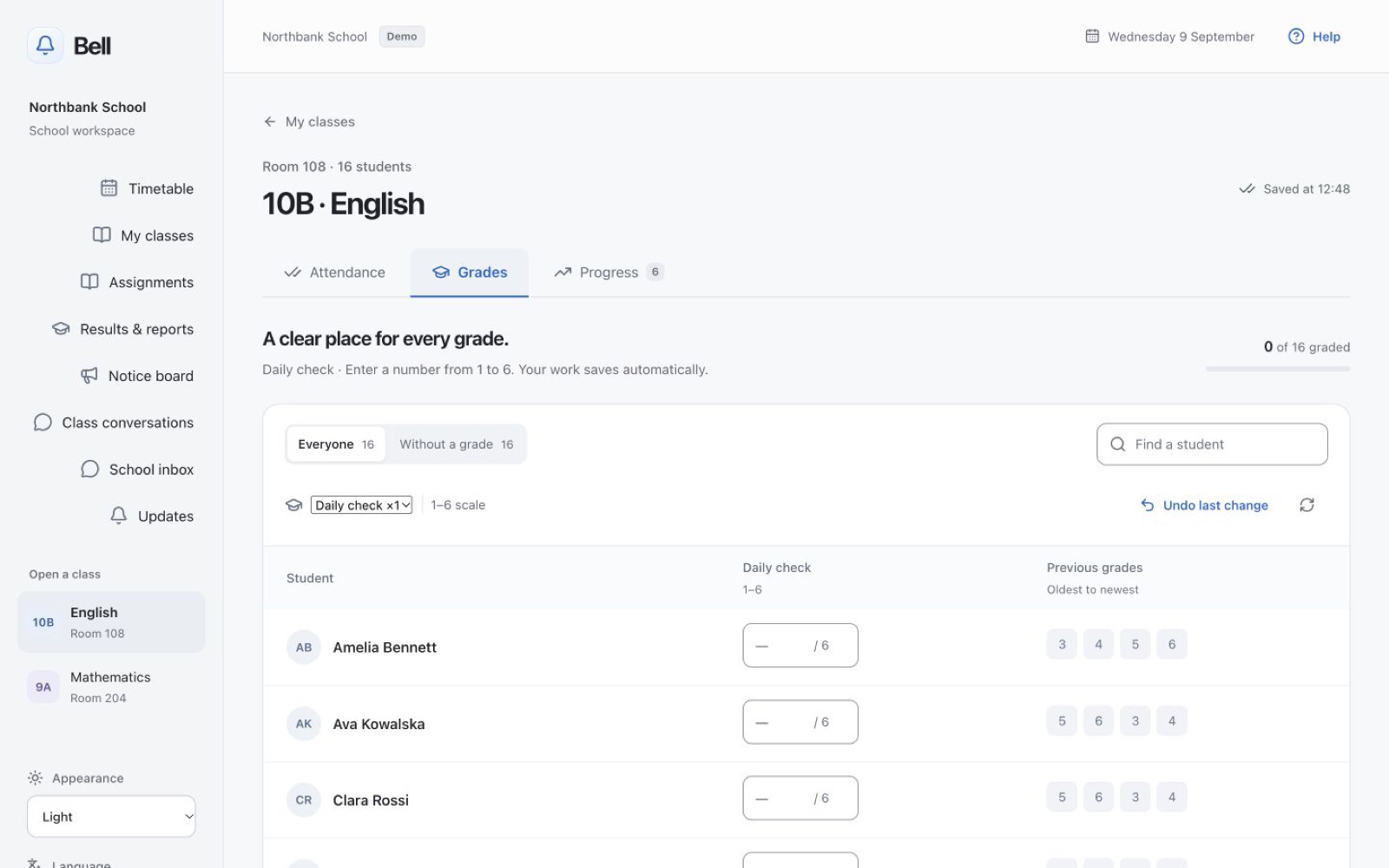
See each student’s earlier marks beside the new one, with the category, weight and scale in view, and the context to plan a useful conversation.

  • Fast entry from the keyboard, with undo.
  • Every scale as it is: one to six with weights, one to nine, percentages or the school’s own codes.
  • No made-up averages: where a subject mixes scales, Bell says so.
Bell's gradebook in the browser
Families

Families who know how to help.

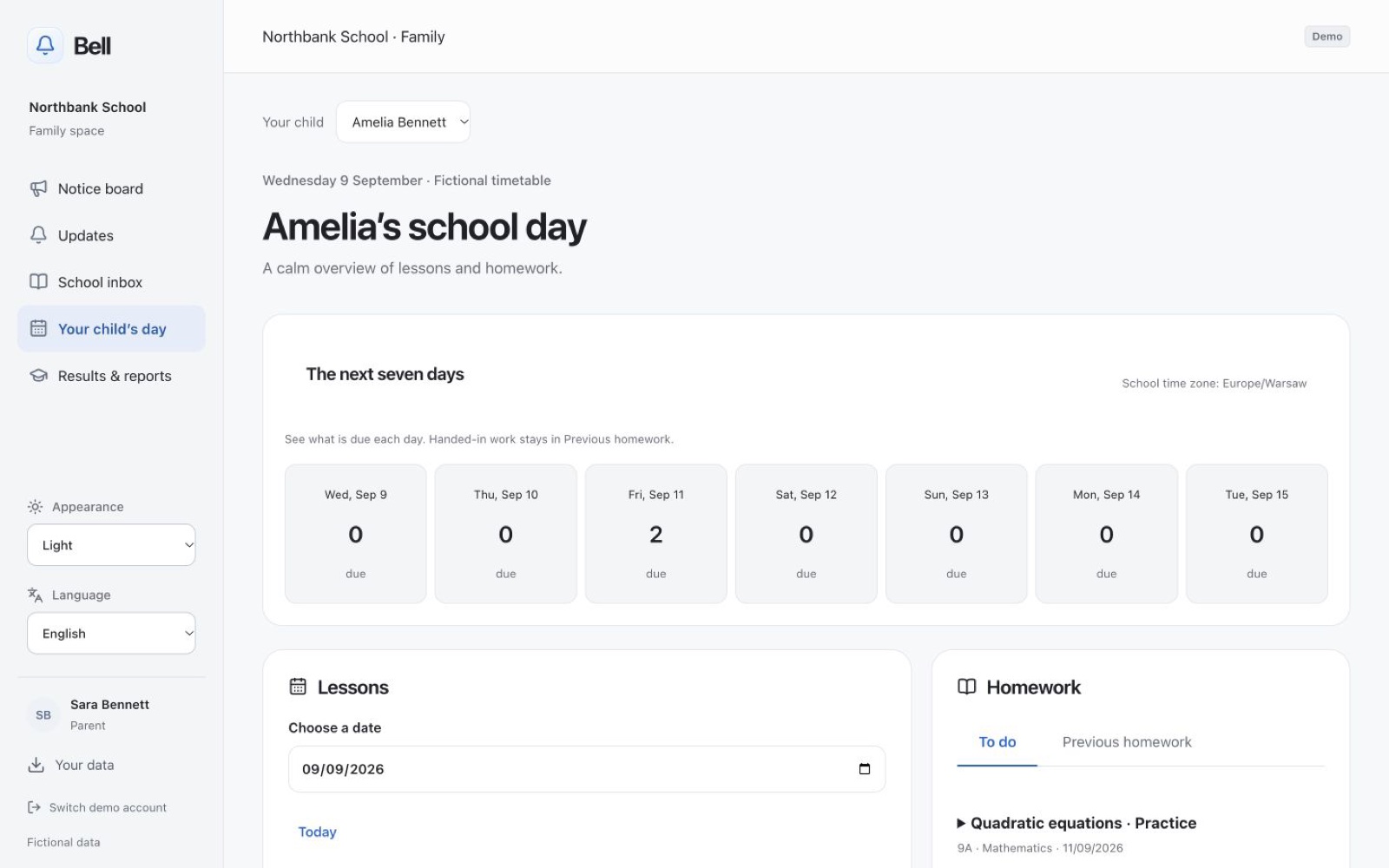
Parents see what their child is working on, what is due and what the school day looks like, so support at home starts from the same picture.

  • Verified parents see only what the school shares with their family.
  • A daily or weekly email of what is new, without the records themselves.
  • Nothing to install for parents: Bell works in the browser.
A parent's view of Bell
THE WHOLE TEACHING DAY

Everything between the bells.

One workspace for the work that happens around lessons.

Assignments

Hand-ins without the chase.

Students save drafts and submit when ready. Submitted work stays as handed in until you ask for changes, and every attempt is kept.

Marking

A queue, not a pile.

Your assigned classes’ work in one queue. Write feedback in private drafts and return it when you are ready, or ask for a revision.

Reports

Written reports, shared on purpose.

Write text reports with staff-only drafts, then share them with the student or permitted family members. Readable and printable.

Results

Find it, filter it, export it.

Results across your classes with filters and search, exported to CSV or printed to PDF.

Communication

A space for each class.

Class announcements with threaded replies, pinned or closed as needed, and a private school inbox for questions and absence requests.

Updates

What changed, in one feed.

New work, submissions to mark, released feedback and requests, with your own read and unread, and an optional email digest.

BUILT FOR REAL SCHOOLS

Ready for your staff room.

Languages

Polish and English.

Every screen of the workspace reads in Polish or English, including the register, gradebook and help.

Access

Clear for everyone.

Visible labels, keyboard use throughout, and calm motion that respects Reduce Motion.

Safety

Permissions per class.

Teachers act on the classes they are given, and staff settle what students report in conversations.

For the school office

Run the school, not the software.

Bell is set up and run by the school, with the controls a leadership team needs.

  • Manage school: years and terms, grading scales, classes, people and the timetable.
  • Timetable builder: plan the week from teachers, rooms and groups, then check a draft for a better arrangement.
  • Study tutor on your terms: off, on the device only, students’ own keys, or the school’s own AI.
  • Who to ask: a school guide the tutor uses to point students to the right person.
How setup and integration work

Questions from teachers

Do we have to stop using Librus or Vulcan?

No. Keep your official register during the pilot. Bell does not connect to Librus or Vulcan today; we agree a small set of tasks to try, and check any authorised imports together.

How much training does it take?

The workspace is laid out like a school day, with visible labels everywhere. A walkthrough starts the pilot, and a weekly report follows through your first term.

Can parents see everything?

No. Verified parents see only what the school shares with their family, and every request is checked against their access.

Does it work on school iPads?

Yes. Device management sets the school’s policy on managed iPads: whether the tutor is on, hand-ins and personal iCloud sync.

LET’S START WITH A CONVERSATION

See Bell with your own timetable.

We are planning first pilots for spring 2027. A short walkthrough shows how Bell would fit your school.

What Bell does for students